Prices in this guide: from 105 € to 2 549 €
TV game mode: how to set up your TV for PS5 and Switch 2
Short answer: Turn on your TV's game mode. The TV then skips most of its picture processing, and the delay between the controller and the picture gets noticeably shorter.
- Turn on game mode on the TV. It is almost always under Settings, Picture and Picture mode, and is called Game or Game Mode.
- Pick the right HDMI input. The one that handles 4K at 120 Hz is often labelled, and the TV may need an enhanced HDMI format switched on for it.
- Let the console handle the rest. With ALLM switched on in the PS5 or Switch 2, a TV that supports it changes to game mode by itself.
- Use the cable that came in the box. It is enough for what the console sends to the TV.
- What you gain: less input lag, meaning that what you do with the stick shows on screen straight away, and a smoother picture in games that support 120 Hz and VRR.
It takes about ten minutes and you do not need to buy anything. Not chosen a console yet? Read PS5 Pro or PS5 Slim, or Switch 2?
Buy now

What is game mode, and why can you feel it?
Input lag is the delay from when you move the stick or press a button until something happens on screen. Part of it arises in the TV, which polishes the picture before showing it: it smooths motion, removes noise and sharpens edges. Each step takes a little time.
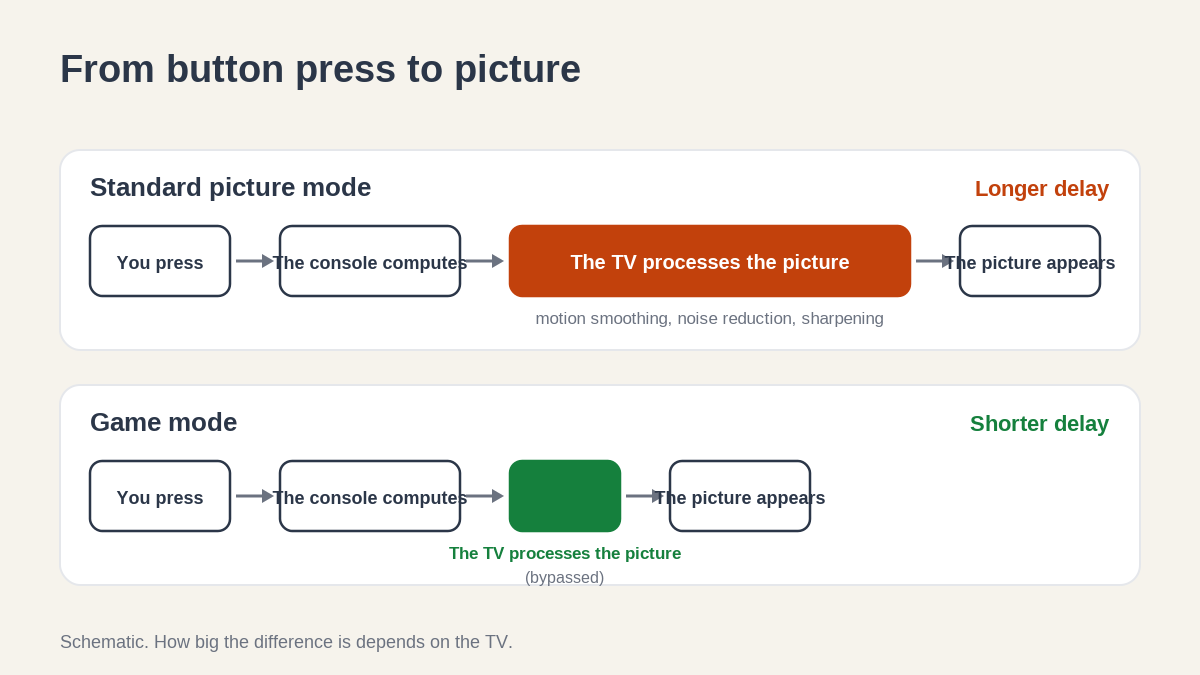
When you watch a film you do not notice. In a game you feel it at once: Mario turns a fraction too late and aiming feels sluggish. Children who say the controller is lagging are often right, but the fault is in the TV's settings.
Game mode bypasses most of the picture processing, and the delay gets noticeably shorter. The picture does not get sharper, only faster, and it can look slightly paler. That can be fixed.
How to turn on game mode on an ordinary TV
First select the HDMI input the console is plugged into. Then open Settings, go to Picture and Picture mode, and choose Game. Several brands only show game mode while an HDMI input is selected.
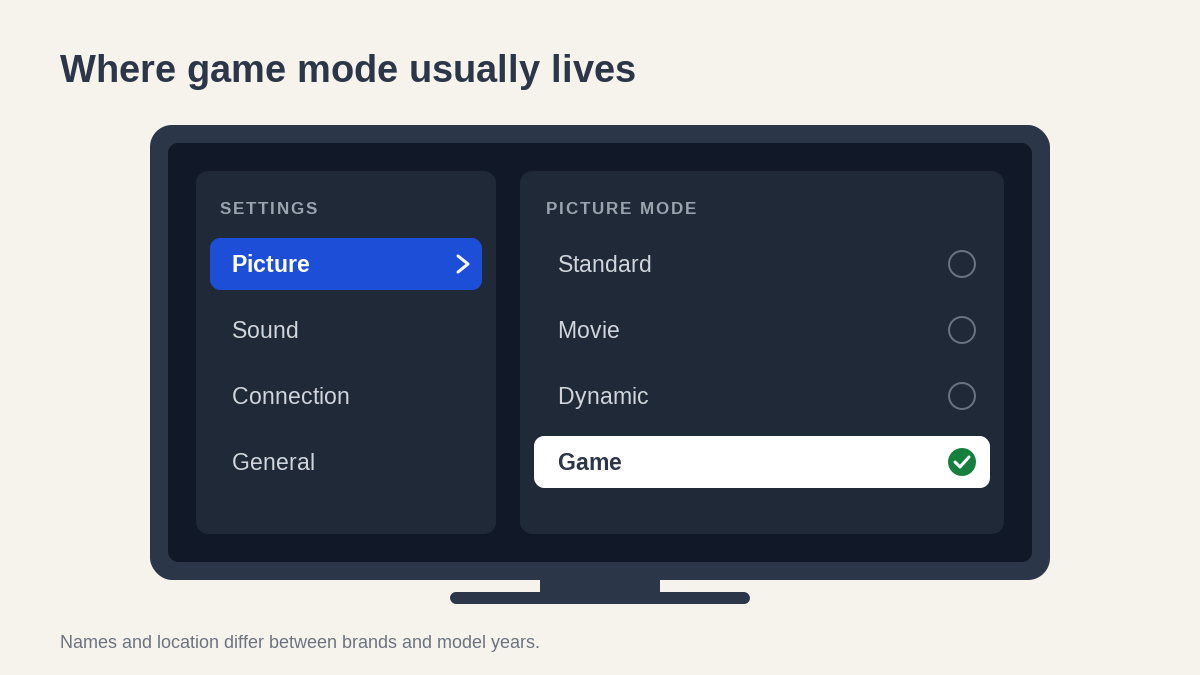
The menu differs between brands and model years. These are the paths the manufacturers themselves give.
| Brand | Applies to | Menu path | The mode is called |
|---|---|---|---|
| Samsung | Model year 2025 | Settings > All Settings > Advanced Features > Game Mode Settings | Game Mode |
| Samsung | Model years 2022 to 2024 | Settings > All Settings > Connection > Game Mode Settings | Game Mode |
| Samsung | Model years 2017 to 2021 | Settings > General > External Device Manager > Game Mode Settings | Game Mode |
| LG | webOS 6.0 and later | Settings > All Settings > General > Game Optimizer | Game Optimizer |
| LG | webOS 5.0 | Settings > All Settings > Picture > Additional Settings | Instant Game Response |
| Sony | BRAVIA 9, 8, 8 II, 7, 5 and A95L | Settings > Display & Sound > Picture & Sound > Content type | Game |
| Philips | Google TV and Android TV | Picture style in the picture settings | Game |
| TCL | Some Google TV models | Settings > All Settings > System | Game Master |
| TCL | Other models | Picture mode in the picture settings | Game |
| Hisense | Differs between models | Settings > Picture > Picture Mode | Game |
| Panasonic | Differs between models | The picture mode in the picture settings | Game |
- Samsung says Game Mode is activated automatically when you connect a games console.
- Sony can choose the content type itself with the setting Prioritise HDMI signal information. On older models the mode may instead be the picture mode Game.
- Philips changes the picture style to Game by itself if HDMI Ultra HD is set to Optimal (Auto Game).
Cannot find the mode? Search for game mode in the TV's manual.
The right HDMI input and cable
HDMI inputs are not all the same. For 4K at 120 Hz the console has to sit in an input that can handle it, often only one or two of them. PlayStation recommends an HDMI 2.1 input and connecting the console directly to the TV, not through an AV receiver.
The input is often labelled. Sony labels it 4K 120 Hz and LG 4K@120 Hz. On Samsung it is usually HDMI 4 on models from 2019 to 2023, and on 2020 models it is marked with a game controller icon.
Many TVs also only let the full signal through if you have switched on an enhanced HDMI format for the input:
| Brand | The setting is called | Where it is | Choose |
|---|---|---|---|
| Samsung | Input Signal Plus | Settings > General > External Device Manager, model years 2018 to 2021 | The console's input |
| LG | HDMI Deep Colour | Settings > General > Devices > HDMI Settings, or Picture > Additional Settings | 4K |
| Sony | HDMI signal format/VRR | Settings > Channels & Inputs > External inputs, on the models above | Enhanced format (Advanced) |
| Philips | HDMI Ultra HD | In the settings for the HDMI input | Optimal or Optimal (Auto Game) |
For TCL, Hisense and Panasonic we have not found the manufacturer's own name for the setting, so check the manual.
The cable. PlayStation recommends the cable that comes with the PS5, or an HDMI cable labelled Ultra High Speed. Switch 2 comes with such a cable in the box. According to Nintendo, the cable from the original Switch cannot be used for TV mode on Switch 2.

PlayStation 5: the settings that matter
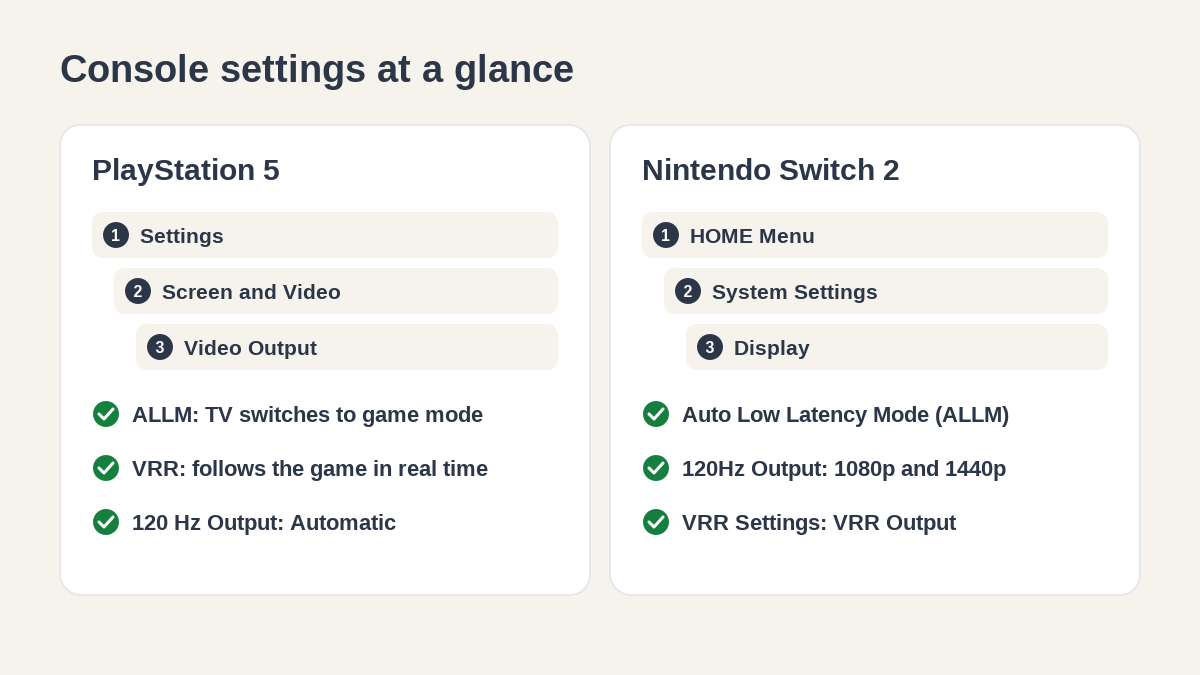
Everything is under Settings > Screen and Video > Video Output, on both PS5 Slim and PS5 Pro.
- ALLM. Auto Low Latency Mode. If the TV supports it, it switches automatically to low-latency mode while you play. Leave it on.
- VRR. Lets the refresh rate adjust in real time, on TVs and in games that support variable refresh rate.
- 120 Hz Output. Gives a 120 Hz picture when both the TV and the game can handle it. Leave it on Automatic.
- Resolution. With Automatic the console picks the highest resolution the TV supports. 2160p is 4K.
- HDR. Choose Always On or On When Supported, and run Adjust HDR once when game mode is on.
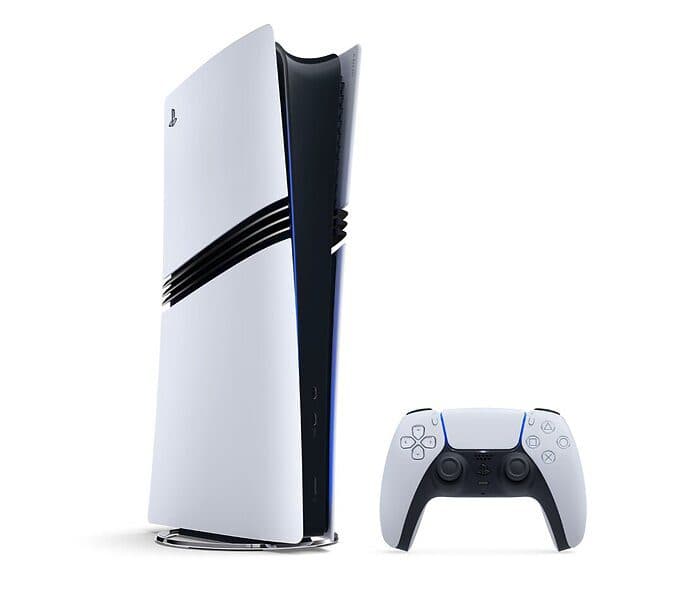
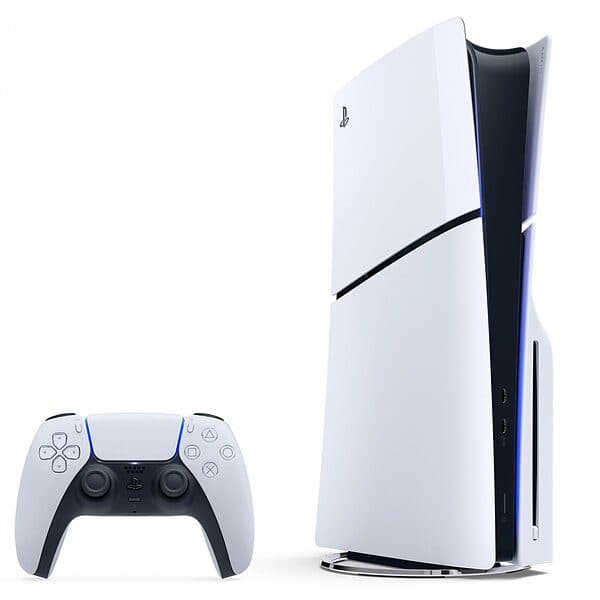
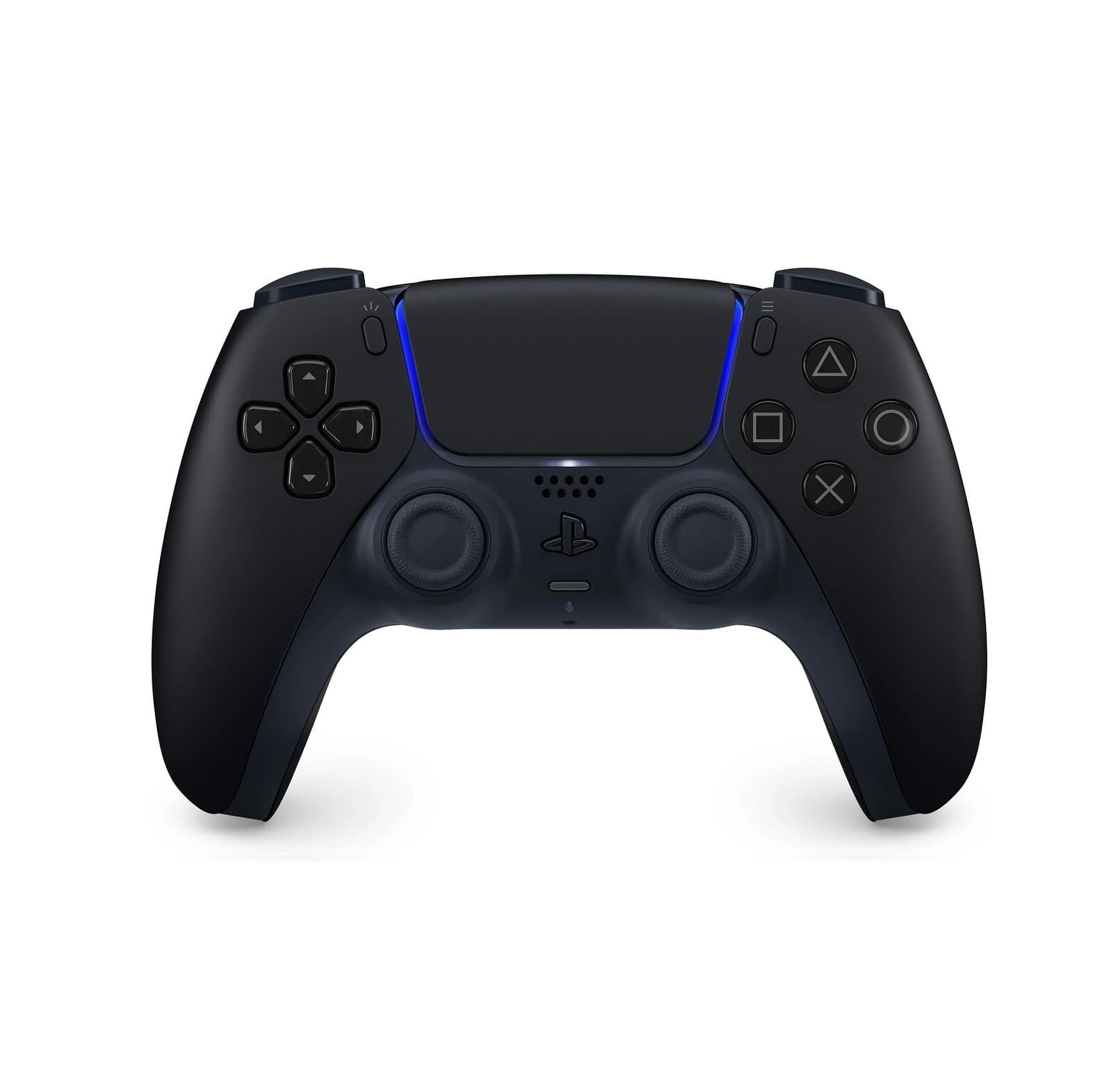
We compare the models in PS5 Digital, Disc or Pro? Consoles and controllers are under PlayStation 5.
Products in this guide
Nintendo Switch 2: the settings that matter
In the dock, Switch 2 sends up to 4K at 60 frames per second according to Nintendo, or 120 frames per second if you select 1080p or 1440p. The console also supports HDR10. This applies in games that support it and requires a TV that can do the same.
The settings are under System Settings > Display from the HOME Menu.
- Auto Low Latency Mode (ALLM). Asks the TV to change to game mode automatically, if the TV supports it.
- 120Hz Output. Higher refresh rate when both the TV and the game can handle it. According to Nintendo it only works at 1080p and 1440p.
- VRR Settings. Turns on VRR Output for TV mode. Support arrived with system update 23.0.0 on 10 September 2026 and requires the dock to be updated as well.
- TV Resolution. Automatic lets the console choose. 2160p is 4K.
- HDR Output. For all games, only for games that support it, or off. Adjust HDR fine-tunes the picture.
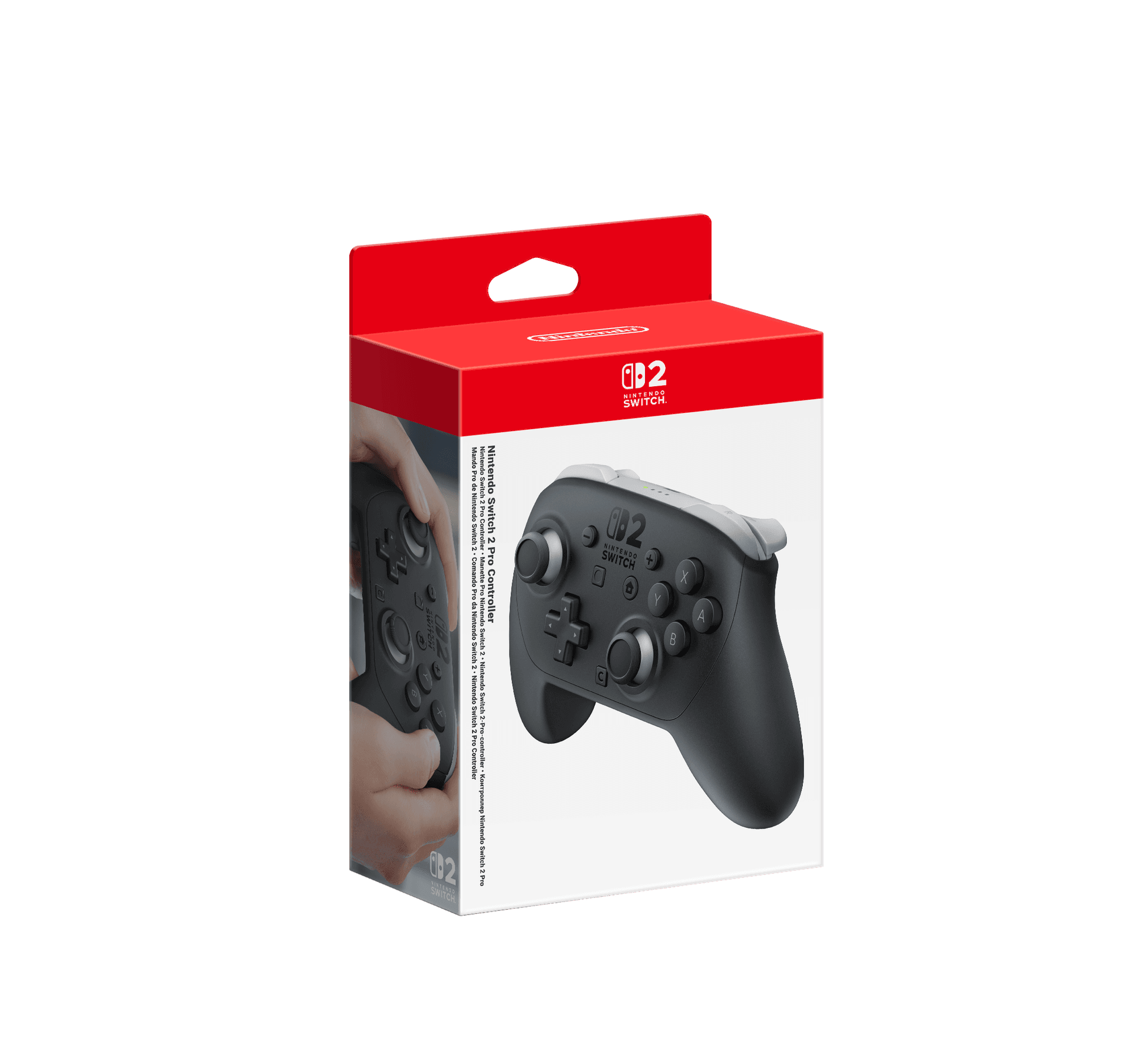
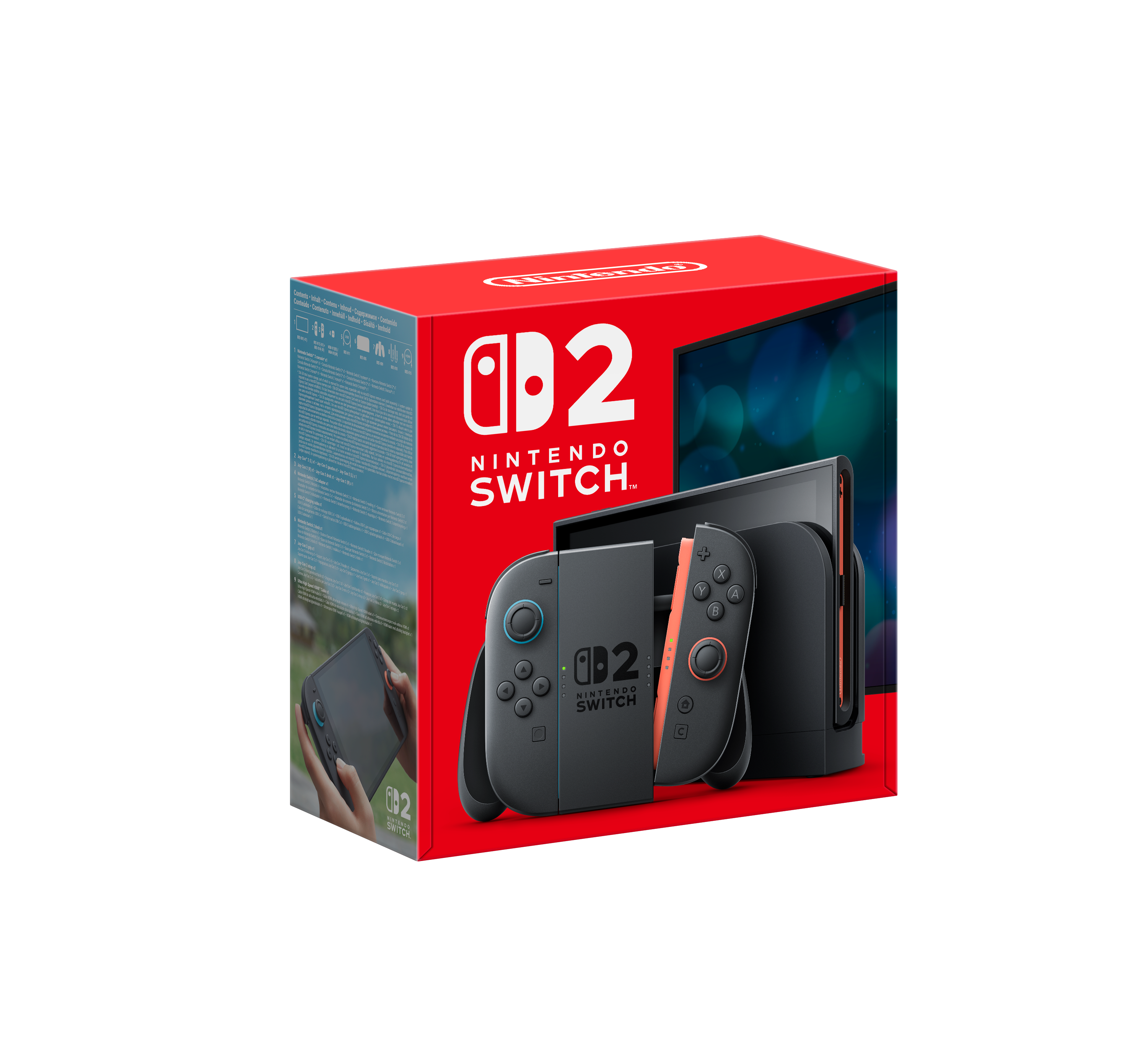
What is in the box is covered in Nintendo Switch 2: what's included. It is also our best games console for families. See Nintendo consoles, or build a bundle in the Nintendo configurator.
Products in this guide
Smoother picture: 120 Hz and VRR
Game mode removes delay. The smooth picture comes from the console, in two ways.
Frame rate. 120 frames per second instead of 60 looks smoother and feels more responsive. It needs a TV with 120 Hz, a game that supports it, and 120 Hz switched on in the console.
VRR. With variable refresh rate the TV follows the console's pace in real time. Nintendo describes it as technology that prevents frame skips and flickering.
The TV's own motion smoothing does not help, though. It calculates extra in-between frames, and that takes time: the picture looks smooth but arrives later. Sony disables its Motionflow when the content type is Game, and Philips states that the off setting gives the lowest latency. Leave it off when you play.
If the picture looks worse in game mode
The picture often looks paler the first time, because the TV has switched off some of what usually adds extra colour and sharpness.
- Adjust brightness, contrast and colour. You can do that without leaving game mode, although some options may be locked according to LG.
- Run the console's HDR adjustment. Adjust HDR on both PS5 and Switch 2.
- Do not switch motion smoothing back on. The delay comes back.
Troubleshooting
- Game mode cannot be selected. Switch to the console's HDMI input first. According to Samsung, the console may be in the wrong input if Game Mode is missing from the menu. On LG you may need to turn on HDMI Deep Colour.
- 120 Hz does not show. Check that the TV has 120 Hz, the right input, the enhanced HDMI format and the cable that came in the box. On PS5, Resolution should be Automatic or 2160p. On Switch 2, 4K gives at most 60 frames per second, so select 1080p or 1440p.
- The picture goes black or flickers. Change input and cable. On Sony, go back to Standard format. On PS5 you can lower Video Transfer Rate to -1 or -2, or turn off 120 Hz Output.
- Brightness flutters. That can be caused by VRR, according to Sony. Try turning VRR off.
The information comes from PlayStation's, Nintendo's and the TV manufacturers' own pages and manuals (checked 21 November 2026). Menus change between model years, so yours may look different.
Legal guarantee
As with everything you buy from us, you have at least 2 years' legal guarantee.
Frequently asked questions
What is input lag? The delay from when you move the stick or press a button until it happens on screen. Part of it arises in the TV's picture processing, and that part gets noticeably shorter in game mode.
Is game mode called the same on every TV? No. In the TV menu it can be called Game, Game Mode, Game Optimizer or Game Master, depending on the brand.
Should game mode be on when I watch films? No. Films look better in a movie or standard mode. If the TV and the console have ALLM, the TV goes to game mode by itself when you play.
Do I need a new TV for PS5? No. With Resolution on Automatic, the PS5 picks the highest resolution the TV supports. For 4K, 120 Hz, VRR and HDR the TV has to support each feature.
Does Switch 2 support VRR on the TV? Yes, since system update 23.0.0 on 10 September 2026. According to Nintendo the dock must be updated too, and both the TV and the game must support VRR. Before that, VRR was only available on the console's own screen.
What is ALLM? Auto Low Latency Mode. The console tells the TV that you are playing, and a TV that supports ALLM then changes to its low-latency mode by itself.
Can Switch 2 do 4K at 120 Hz? No. According to Nintendo, TV mode gives up to 4K at 60 frames per second, and 120 frames per second when 1080p or 1440p is selected.
Published 21 November 2026 · Linné Elektronik
Join the Customer Club and we will email you when there are new videos and guides, along with our offers.